
Youth Sports Compliance (YSC) is the BodyMetrix subscription that lets certified assessors and high school wrestling programs run the assessments their State Athletic Association requires, using the BodyMetrix Ultrasound System. Access is by application. You apply, we confirm you’re eligible, and we send you the subscription option that fits your program. Applying commits you to nothing.
This guide walks you through the five steps between the application form and a fully activated BodyMetrix system. Most programs finish within a week. The only real wait is our review, which takes one to two business days. Follow the steps in order.
| Step | What happens | Timing |
|---|---|---|
| 1. Apply | Submit the YSC Program application. A confirmation email arrives right away. | Same day |
| 2. Review | We verify your certification or program with your state association and validate your address. | 1 to 2 business days |
| 3. Approval | Your approval email unlocks the YSC catalog and contains your private purchase link. | On approval |
| 4. Purchase | Your subscription is created. If you ordered a device, it ships to the address you gave us. | Ships in 2 to 5 business days |
| 5. Activate | Install the BodyMetrix application, enter your activation code, and connect the device. | About 15 minutes |
Part 1: Before You Apply
Step 1. Make sure YSC is for you
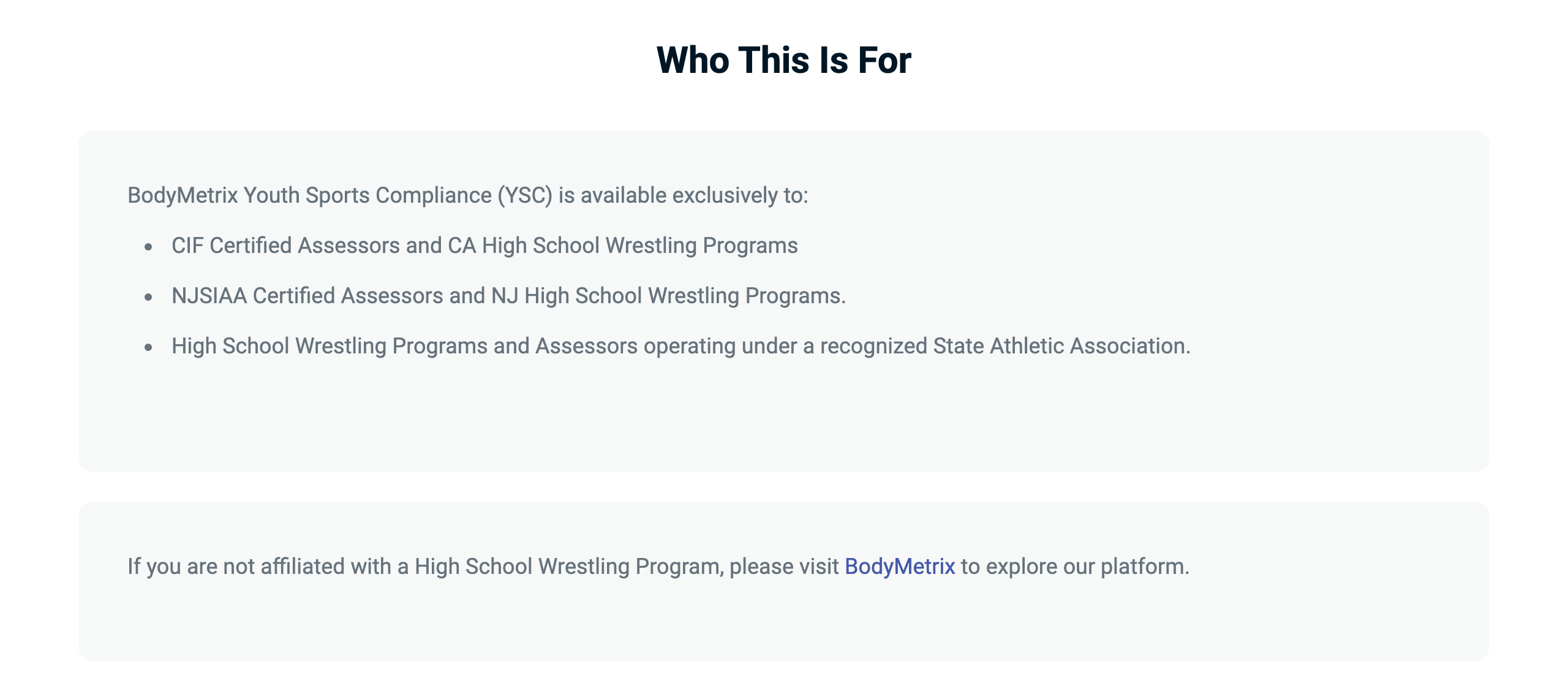
YSC is available only to:
- CIF certified assessors and California high school wrestling programs
- NJSIAA certified assessors and New Jersey high school wrestling programs
- High school wrestling programs and assessors operating under any other recognized State Athletic Association
If your state association sent you to the YSC Program page, you’re in the right place. If you’re not affiliated with a high school wrestling program, YSC isn’t the right fit. Visit bodymetrix.com to explore the standard BodyMetrix platform instead.
Step 2. Have these ready
The form takes about five minutes if you have four things at hand:
- Your assessor certification or program details, exactly as they’re registered with your state association.
- The email address you want tied to your BodyMetrix account. Every onboarding email goes there, so avoid a shared or generic inbox that nobody checks daily.
- A working mobile number.
- The complete, valid shipping and billing addresses for your school or organization. We validate every address, and an incomplete or incorrect one delays your approval.
Got a discount code? Keep it. It only works once your onboarding is complete. The code is tied to the Youth Sports Compliance catalog, which you can only see and buy from after your application is approved. Follow the steps in order and the code will apply at checkout (Step 12).
Check your spam folder. Every email in this process comes from the IntelaMetrix team: the confirmation, the approval with your purchase link, the order confirmation, and the activation code. Some school and district mail systems route new senders to spam. If an email you’re expecting hasn’t arrived, look in your spam folder first and mark the message Not spam. That tells your mail system to deliver the next ones to your inbox. Adding support@bodymetrix.com to your contacts helps too.
Part 2: Apply (about 5 minutes)
Step 3. Open the YSC Program page
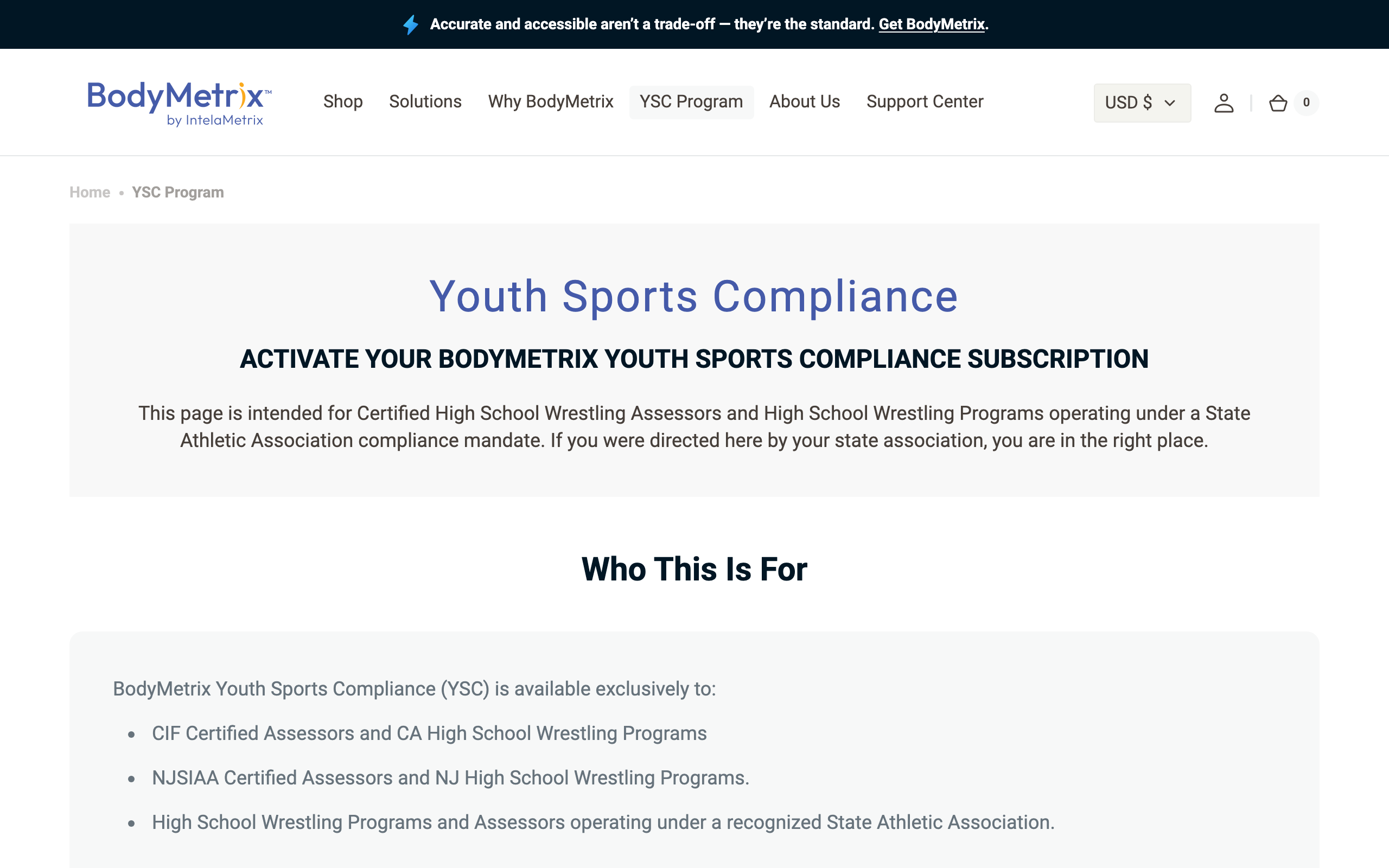
Go to bodymetrix.com/pages/ysc, or click YSC Program in the top menu of bodymetrix.com. Scroll past the eligibility section to the application form. Every field marked with a red asterisk is required.
Step 4. Fill in who you are
The top of the form is about you and your program:
- First Name / Last Name: your own name. You’ll be the primary contact and the account holder.
- Email: the address you’ll sign in with. Your confirmation, approval, purchase link, and activation code all go here.
- I am: your role. This one matters. See Step 5.
- Mobile Phone Number: a working mobile number with the right country selected. We use it only if we need to reach you during review or shipping.
- State Athletic Association: the association you operate under. See Step 6.
- School / Organization Name: the official name of the school or program. Independent assessors, enter the organization you’re certified through.
- Do you already have a BodyMetrix device? Choose Yes if you own a BodyMetrix Ultrasound System and only need the YSC subscription. Choose No if you need a device as well. This decides whether a device is included in your purchase link.
Step 5. Choose your role carefully
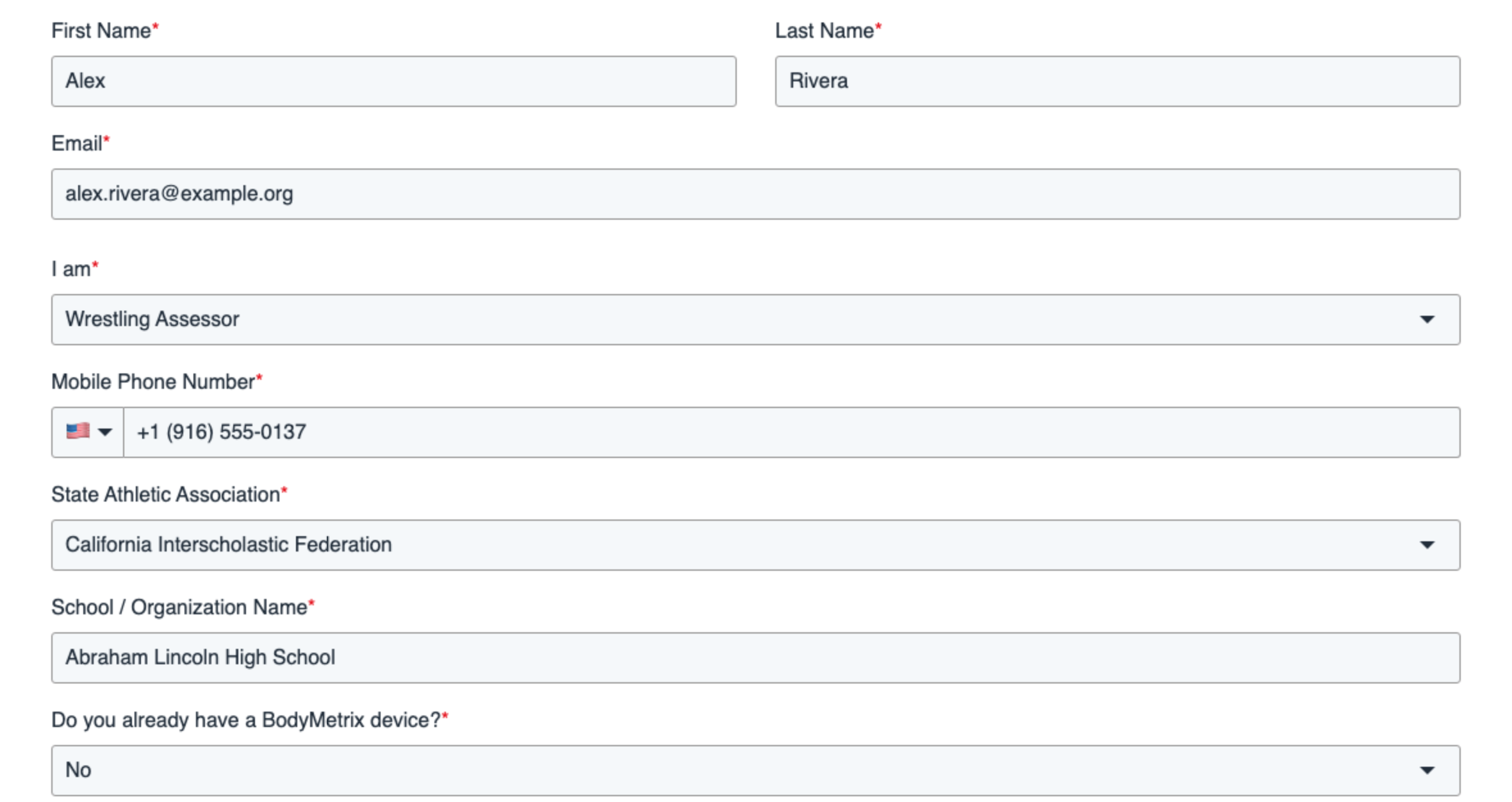
Under I am, pick Wrestling Assessor if you’re an individually certified assessor, or Coach or Team if you’re applying on behalf of a school program. This one choice decides which subscription option you’ll be offered (Step 10), so pick the one that matches how you’ll actually use the system.
Not sure which fits? Submit your best guess, then reply to your confirmation email with the question. We can sort it out during review, before anything is approved.
Step 6. Pick your state association
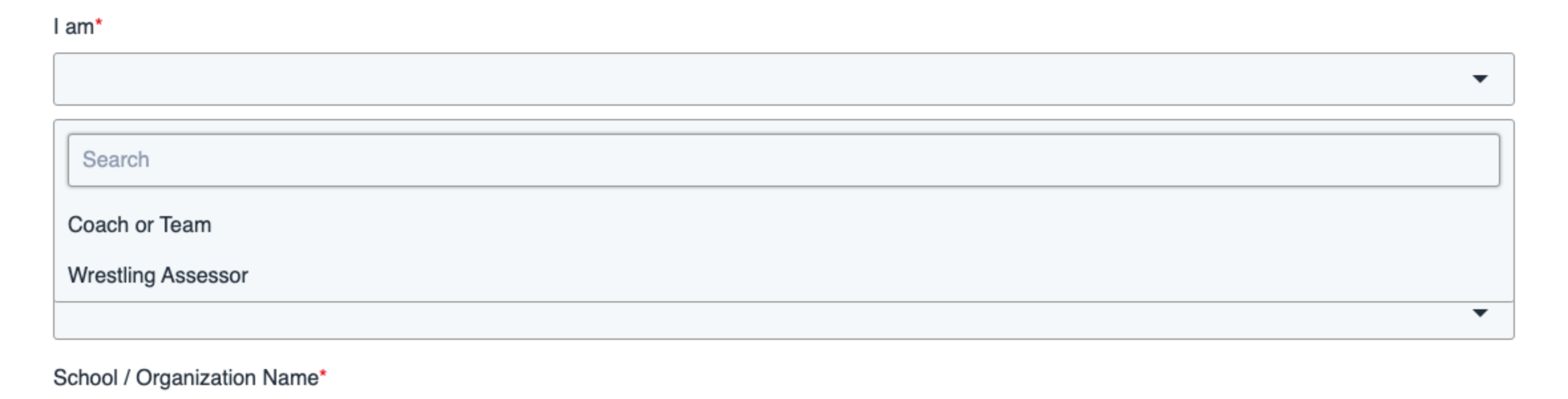
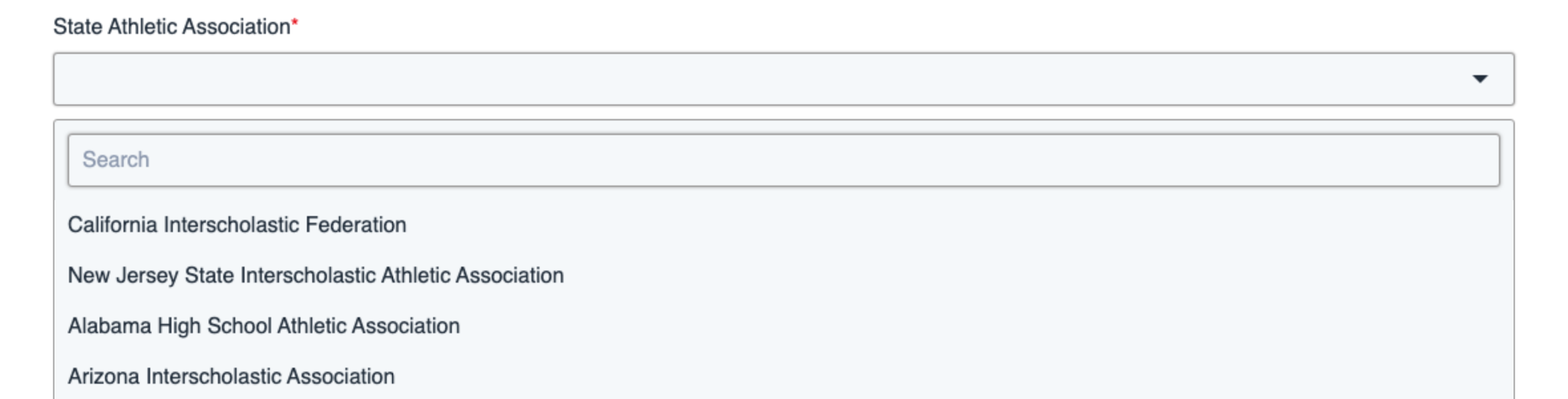
Under State Athletic Association, choose the association you operate under. CIF and NJSIAA sit at the top of the list. Every other state association follows alphabetically, and you can type in the search box to jump to yours. If your association isn’t listed, choose the closest option and name the actual association in the School / Organization Name field.
Step 7. Enter your shipping address and submit
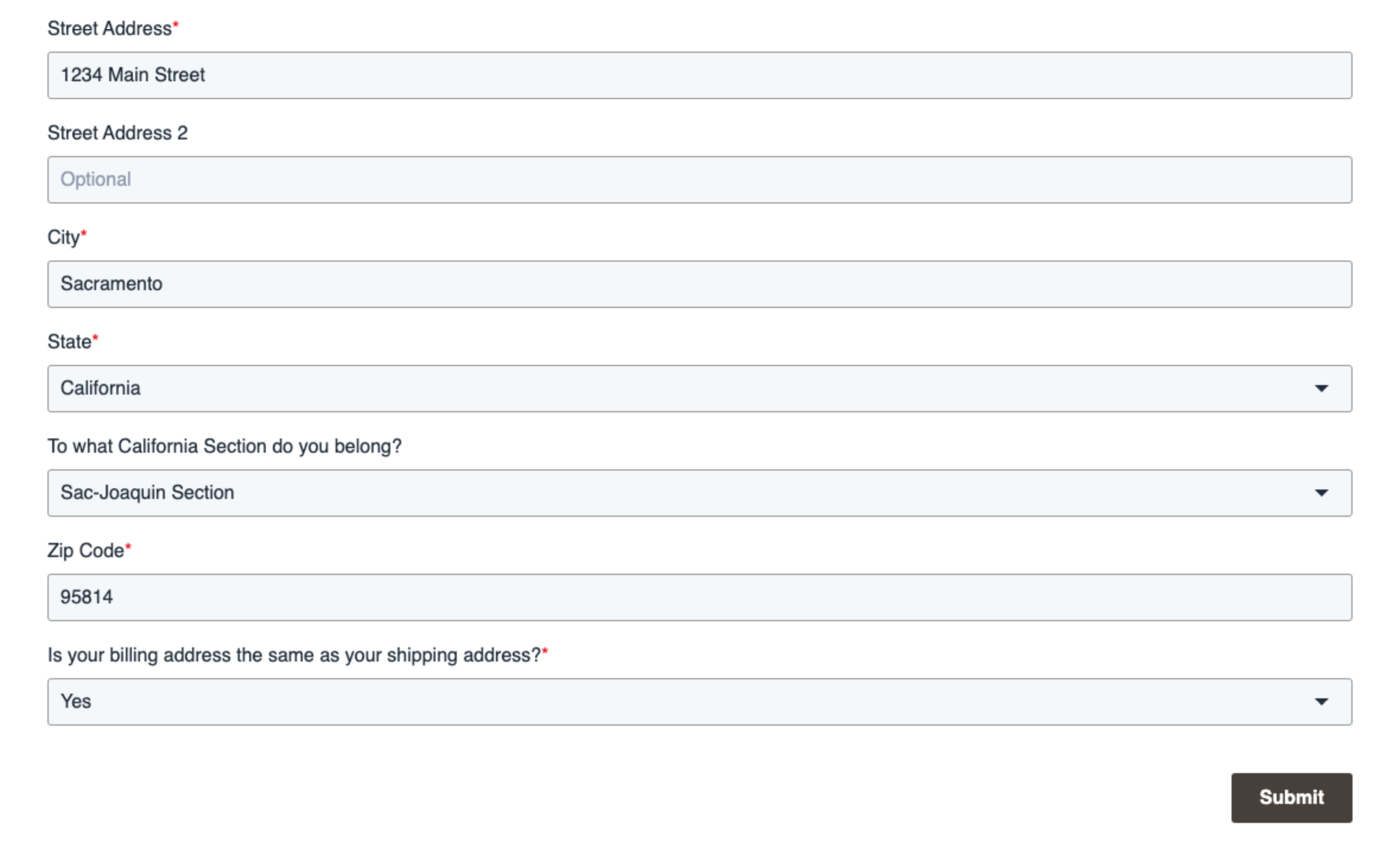
Enter the address the device and any materials should ship to: the school or organization address, not a PO Box. Type it exactly as the postal service recognizes it: street number and name, suite or room in Street Address 2 if you have one, city, state, and 5-digit ZIP.
If you chose California as your state, one more dropdown appears, To what California Section do you belong? Pick your CIF section there.
Under Is your billing address the same as your shipping address?, choose Yes if your invoice goes to the same place. If you choose No, we’ll ask for the billing address at checkout. Double-check the street number, ZIP code, and spelling, then click Submit.
Your address must be valid. Every address goes through a validation check during review. An incomplete or misspelled address puts your application on hold until we can confirm it with you.
Step 8. Watch for the confirmation email
Within a few minutes, you’ll receive an email acknowledging your application. If it isn’t in your inbox, check your spam folder and mark it Not spam so the rest of our emails reach you. If it isn’t there either, email support@bodymetrix.com. Don’t submit the form a second time.
| From | The BodyMetrix Team |
| Subject | We Received Your BodyMetrix YSC Program Application |
| What it says | We have your application and you’ll hear from us within 1 to 2 business days. You can reply to it with any question. |
Part 3: Review and Approval (1 to 2 business days)
Step 9. Sit tight while we review
Nothing for you to do here. Our team reviews every submission within one to two business days. We confirm your certification or program status with the state association you selected, check that the role you chose matches that status, and validate the address you entered.
If anything needs clarifying, such as your name not appearing on the association’s assessor list, the school name not matching its records, or the address not validating, we’ll email you a specific question. A prompt reply keeps your application moving.
Step 10. Your approval email
Once approved, you’ll receive an email from the IntelaMetrix team with the subscription option that fits your program and a private purchase link. Approval is what unlocks the Youth Sports Compliance catalog for your account. The YSC subscriptions, assessment blocks, and device bundle are not visible on the public shop.
The option you receive depends on the role you chose in Step 5:
| If you selected | You’re offered | For |
|---|---|---|
| Wrestling Assessor | YSC Assessor | Individually certified assessors who run assessments for one or more schools |
| Coach or Team | YSC Team | A school program that runs its own assessments |
Within each role, you choose how you want to pay for assessments:
| Option | How it works | Best for |
|---|---|---|
| YSC Annual (unlimited) | Unlimited assessments for one year | Assessors and programs that assess throughout the season |
| YSC Assessment Blocks (pay as you go) | A fixed number of assessments, 25, 50, 100, 250, or 500, that you draw down as you go | Smaller programs or a single certification window |
If you told us you don’t have a BodyMetrix device yet, the purchase link also includes the BodyMetrix Ultrasound System bundle. If you already own one, only the subscription is included.
| From | The BodyMetrix Team |
| Subject | Congrats! You Are Approved: Activate Your BodyMetrix YSC Subscription |
| Inside | Your subscription option and the private purchase link |
Not sure which option to pick? Reply to the approval email. The team will help you size the right option to the number of wrestlers you expect to assess this season.
Two business days and no email? Check your spam folder first, then email support@bodymetrix.com.
Part 4: Purchase (about 10 minutes)
Step 11. Open your private purchase link
Click the link in your approval email. It takes you to the BodyMetrix store with your YSC pricing already applied. This pricing isn’t visible on the public shop, so always use the link rather than browsing to the store on your own. Confirm the subscription option and, if applicable, the device bundle in your cart.
Step 12. Check the address, apply your code, and pay
At checkout, check the shipping address. It’s pre-filled from your application, so correct it now if anything has changed. If you have a discount code, enter it now. It’s valid only on the YSC catalog, which is why it wouldn’t work before approval. Enter the billing address if it differs from shipping, then complete payment.
Code rejected after approval? Email support@bodymetrix.com with the code before you pay.
Does your school pay by purchase order? Email support@bodymetrix.com before checking out so we can arrange invoicing.
Step 13. Order confirmation and shipping
You’ll receive an order confirmation by email. If a device is included, a separate shipping notification with a tracking number follows once it leaves our warehouse, usually within two to five business days.
Part 5: Activate (about 15 minutes)
Step 14. Your activation email
Shortly after your purchase is confirmed, you’ll receive an activation email containing your BodyMetrix activation code and the link to download the BodyMetrix desktop application. Keep this email. The code is unique to your subscription. As with the earlier emails, check your spam folder if it hasn’t arrived within a few hours of your order confirmation.
| From | The BodyMetrix Team |
| Inside | Your activation code (format XXXX-XXXX-XXXX-XXXX) and the download link for the BodyMetrix application |
Step 15. Download and install BodyMetrix
Download BodyMetrix from the link in the email and install it on the computer you’ll use for assessments. BodyMetrix runs on Windows 10 (22H2 or later) and macOS 12 or later. See BodyMetrix Software Computer Requirements for details.
School-managed computer? Installing software usually needs an administrator. Forward the download link to your IT department along with the BodyMetrix IT Installation Guide. It tells them everything they need.
Step 16. Open BodyMetrix and enter your activation code
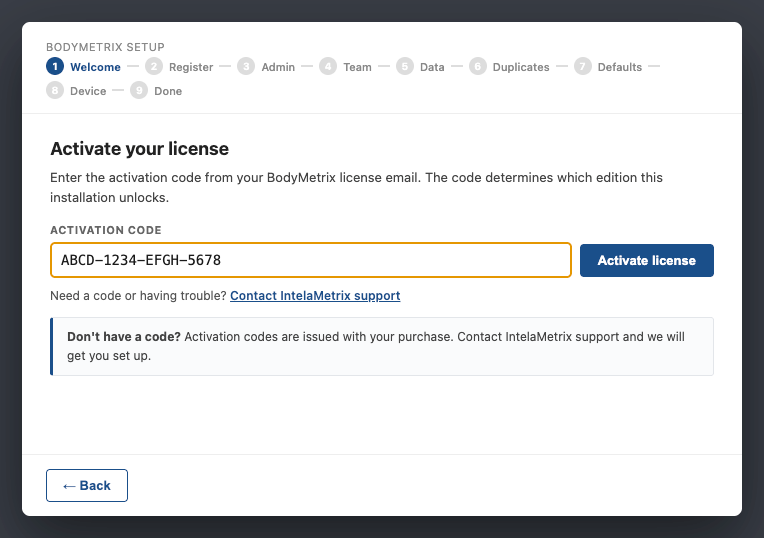
The first time BodyMetrix opens, the Setup Wizard greets you. Click your preferred language, then type the activation code from your email exactly as shown (format XXXX-XXXX-XXXX-XXXX) and click Activate license. You need an internet connection for this step.
Code not accepted? Check that you entered it exactly as shown and that the computer is online. If it still fails, contact support with the code and the email address you used on the application.
Step 17. Finish the Setup Wizard
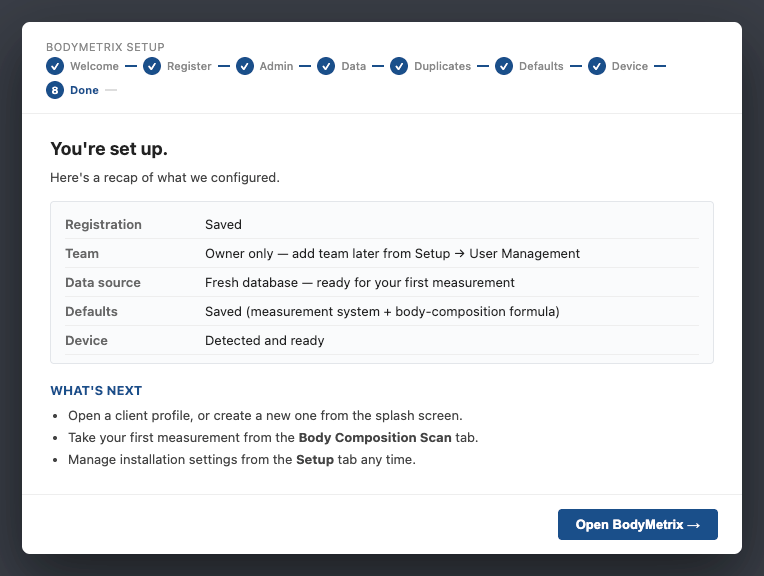
The wizard then walks you through accepting the terms, registering your installation, creating your admin account and 6-digit PIN, saving your recovery code, choosing Start fresh as your data source, and setting your units. Each screen is a click or two, and the BodyMetrix Assessor Quick Start Guide shows every one of them with a picture (Part 1). When you reach the recap screen, click Open BodyMetrix →.
Step 18. Connect the device
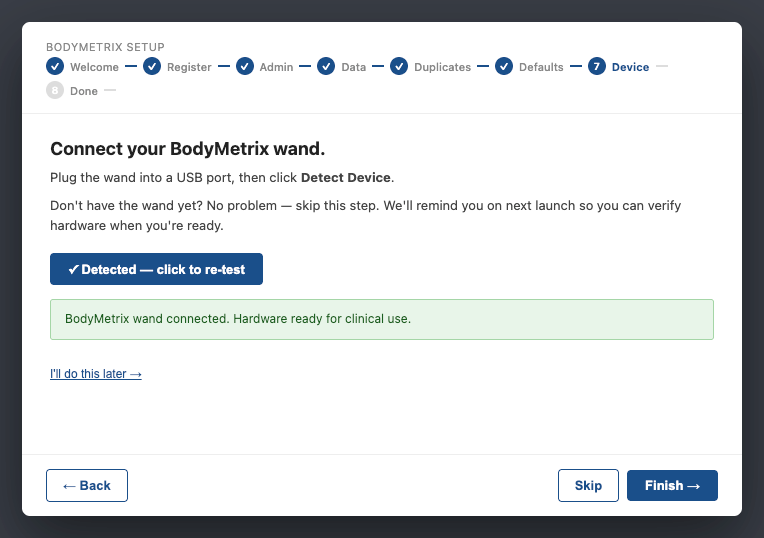
When the wizard asks, plug the BodyMetrix ultrasound wand into a USB port and click Detect Device. You’ll see a green confirmation. If the wand hasn’t arrived yet, click Skip. The app reminds you at next launch, and you can connect it any time before your first assessment.
That’s it, your system is active. Your subscription is tied to this activation, so keep the activation email somewhere safe in case you ever need to set up a replacement computer.
Step 19. What comes next: connect Track Wrestling
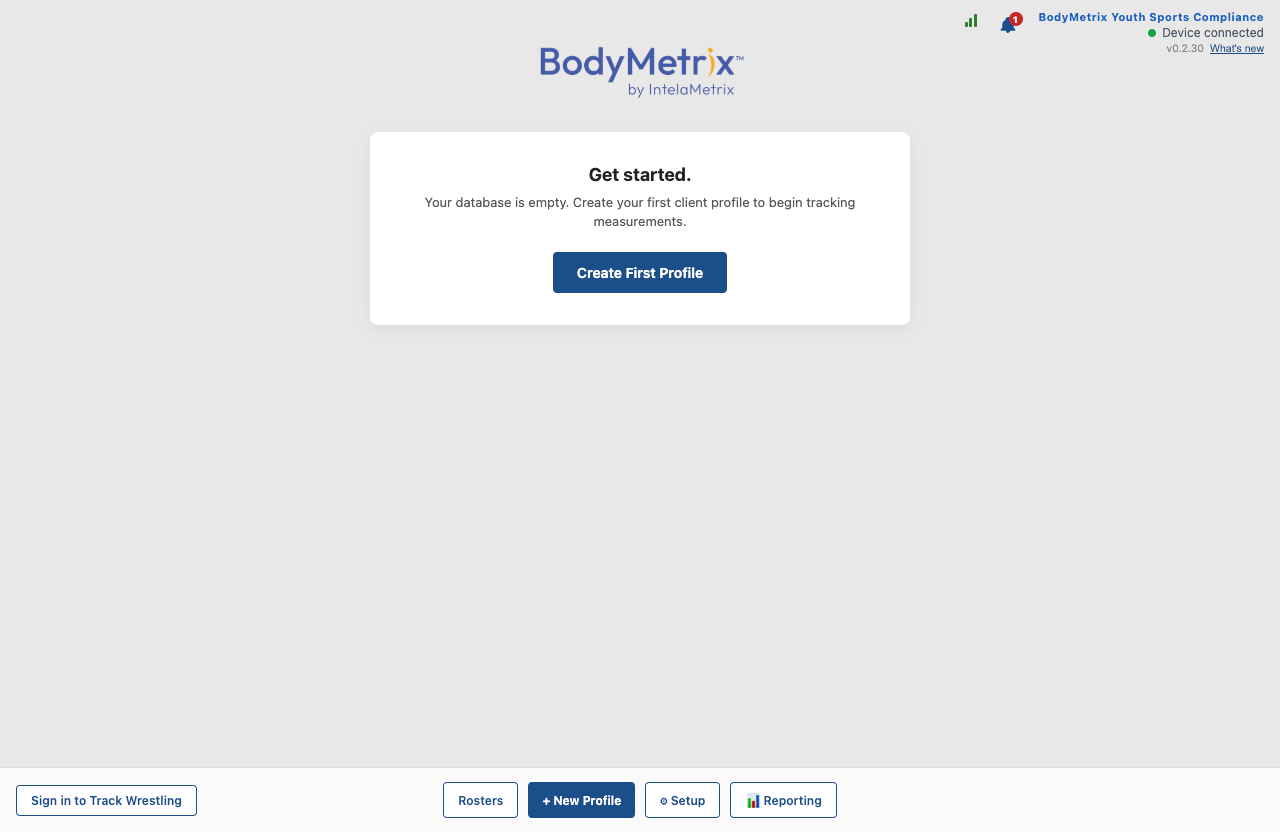
With BodyMetrix activated, the remaining setup is connecting it to Track Wrestling, your state association’s roster and results system, so rosters load into BodyMetrix and completed assessments are submitted automatically. From the start screen, click Rosters to begin. The BodyMetrix Assessor Quick Start Guide covers that from Part 2 onward, all the way through your first submitted weigh-in.
One rule worth knowing now: wrestlers must be on the roster in Track Wrestling before you assess them. Adding a wrestler mid-assessment isn’t supported. The coach adds the wrestler in Track Wrestling first, then you refresh the roster in BodyMetrix.
Your Onboarding Checklist
- I’m a certified assessor, or a program under a recognized State Athletic Association
- I submitted the YSC Program application with a complete, valid address and a working mobile number
- I received the confirmation email (checked spam and marked it Not spam)
- I received the approval email with my subscription option and private purchase link
- I completed the purchase, applying my discount code at checkout if I have one
- I received my activation code and installed the BodyMetrix application
- I entered the activation code, finished the Setup Wizard, and connected the device
Who to Contact
| Contact | For |
|---|---|
| support@bodymetrix.com | Questions about your application, approval email, purchase, or activation code |
| bodymetrix.com/pages/contact-support-form | Technical issues with the application or device. The form routes your request to the right team. |
| Your state association | Questions about certification requirements, assessment windows, or the compliance mandate itself |
Stuck, or something looks different? Open a support case at bodymetrix.com/pages/contact-support-form. Tell us which step you were on and include any code or message you were shown.
Links to add in the editor (so readers click straight through): BodyMetrix Software Computer Requirements (Step 15), BodyMetrix IT Installation Guide (Step 15), and the Track Wrestling sign-in article (Step 19). Link “BodyMetrix Assessor Quick Start Guide” only if it’s published. If not, leave it as plain text.
One mismatch in the PDF itself: the file is named v1.2, but the footer says “v1.1 DRAFT.” Worth fixing before the PDF goes out anywhere else.