
You can bring your clients and their measurement history from BodyView into BodyMetrix Software. You can do this during first-time setup, or any time later.
Which file you need
- BodyView ProFit stores your data in a .db3 file named BodyViewProFitDB.
- BodyView Professional (older) stores it in an .mdb file.
Migrate during first-time setup
- In the Setup Wizard, on the Where is your data? step, choose Migrate from legacy BodyView.
- Click Auto-detect to let BodyMetrix find the file on this computer. Use Browse... only if Auto-detect comes up empty or your data is on another computer.
- Click Import.
- Review any duplicate clients the wizard finds, then continue setup.
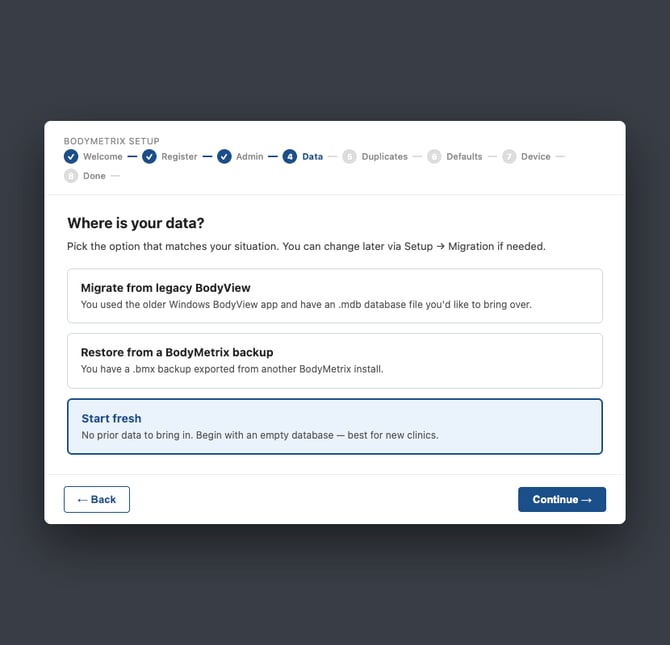
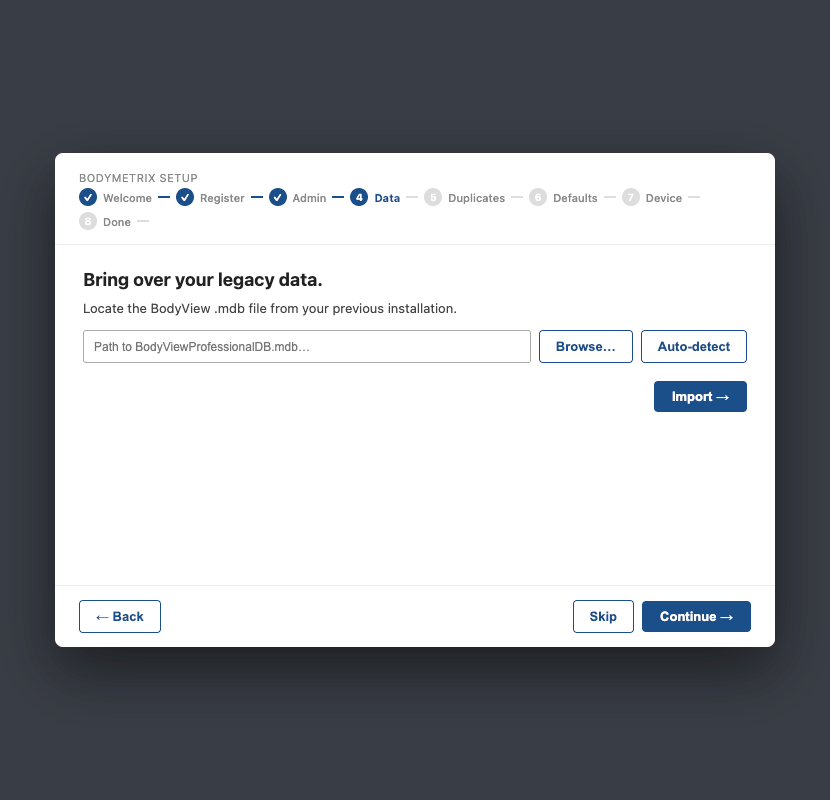
Migrate later: go to Setup > Data Management.
Can't find the database?
- On the computer that ran BodyView ProFit, the file is usually in C:\ProgramData\IntelaMetrix\BodyViewProFit\DB.
- ProgramData is a hidden folder. In File Explorer, click View, point to Show, and check Hidden items. On Windows 10, it's the View tab, then the Hidden items checkbox.
- Faster: in the Browse... window, paste C:\ProgramData\IntelaMetrix\BodyViewProFit\DB into the file name box and press Enter.
- Select only the BodyViewProFitDB file. Ignore calibration.dat and the numbered subfolders, which hold scan images from the old Device.
- If the file shows a PDF or other unexpected icon, that's fine. Another program on that computer has claimed .db3 files, and BodyMetrix still reads it.
Data on a different computer? Copy the BodyViewProFitDB file to a USB drive, then use Browse... on the new computer.
Need help? Open a case at bodymetrix.com/pages/contact-support-form and choose Software & App Support.