
When your wand is connected, BodyMetrix shows a green Device connected status at the top right of the app. If you don't see it, work through these steps in order.
1. Check the connection
- Plug the wand into a free USB-A port on your computer. If your computer only has USB-C ports, use a USB-C to USB-A adapter.
- If you're using a USB hub, try a port directly on the computer instead.
- Unplug the wand, wait a few seconds, and plug it back in.
2. Run the Wand Connection Troubleshooter
Click the device status at the top right of BodyMetrix. The Wand Connection Troubleshooter opens and walks you through each check.
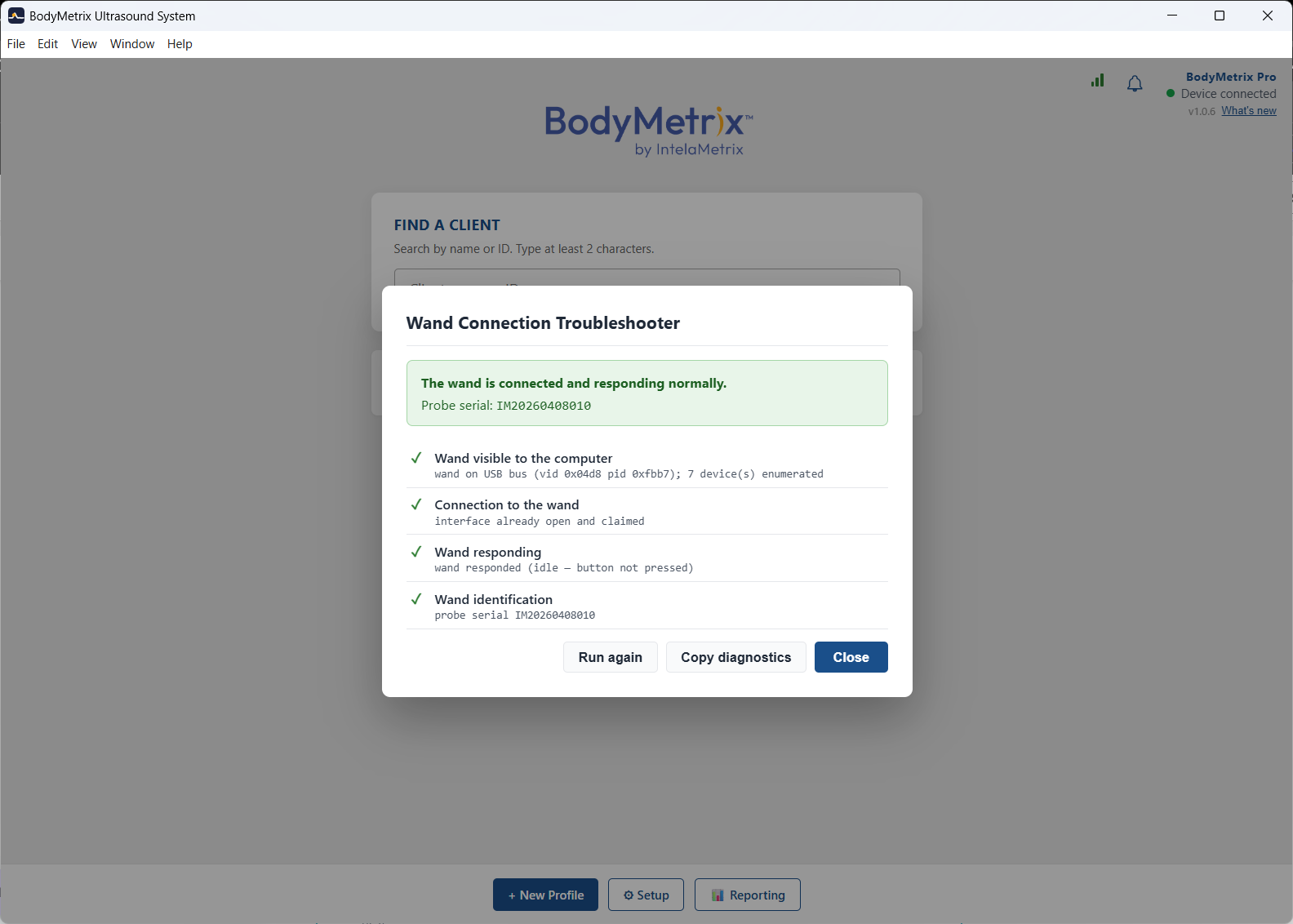
On Windows, the wand needs a driver, which BodyMetrix sets up during installation. If you declined the BodyMetrix Setup approval prompt from IntelaMetrix Holdings, Inc. during installation, the troubleshooter guides you through the driver step. On a work or school computer, that step may need your IT team. Share the BodyMetrix IT Installation Guide with them.
On Mac, no driver is needed.
3. Check that Windows sees the wand
With the wand plugged in, open Device Manager and look for BodyMetrix. If it's listed, Windows recognizes the wand.
4. Still not detected?
Open a support case at bodymetrix.com/pages/contact-support-form and choose Device Support. Include:
- Your BodyMetrix Device serial number. If the app can't detect the wand, you'll find it on the original packaging or insert card.
- A screenshot of the whole BodyMetrix window. Crop out any client names or measurements first.