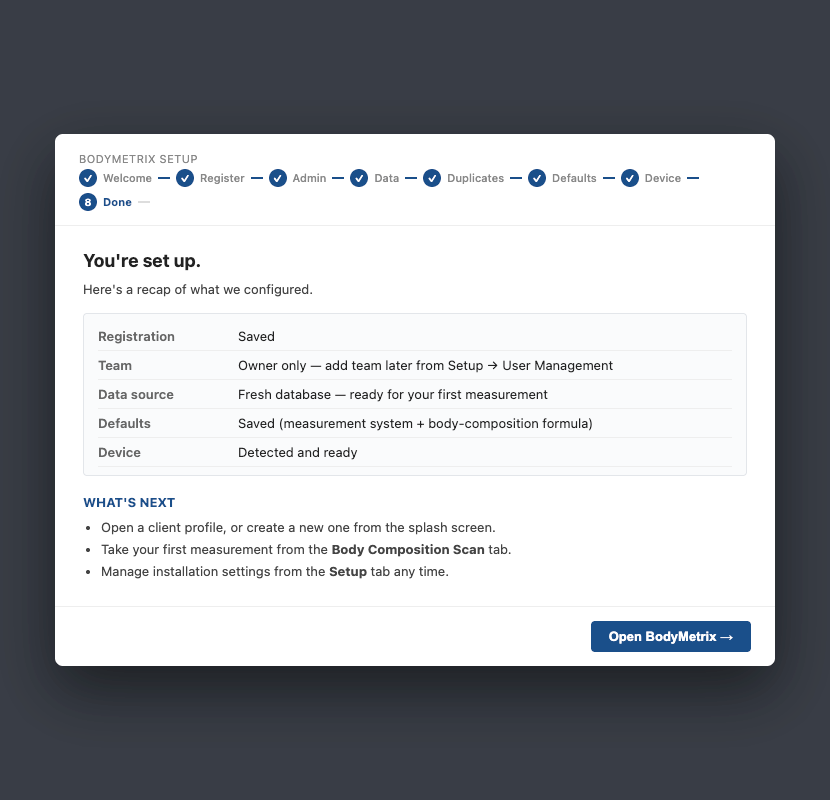
The first time you open BodyMetrix Software YSC, a Setup Wizard walks you through 10 short steps. Most users finish in under 10 minutes. Your progress saves automatically, so you can stop and resume.
1. Choose your language. Click your language, then Continue.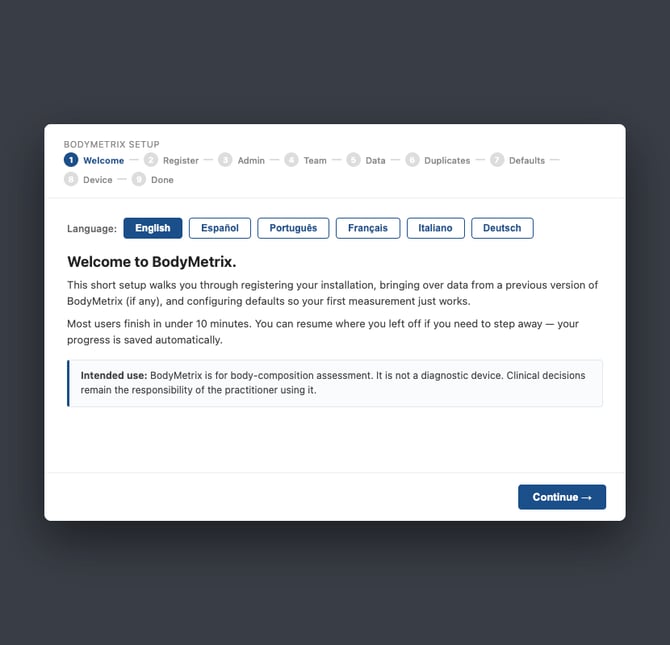
2. Activate your license. Enter your activation code (format XXXX-XXXX-XXXX-XXXX) and click Activate license. You need an internet connection for this step. Don't have a code? If your organization purchased BodyMetrix, your program administrator has it. Otherwise, open a support case at bodymetrix.com/pages/contact-support-form.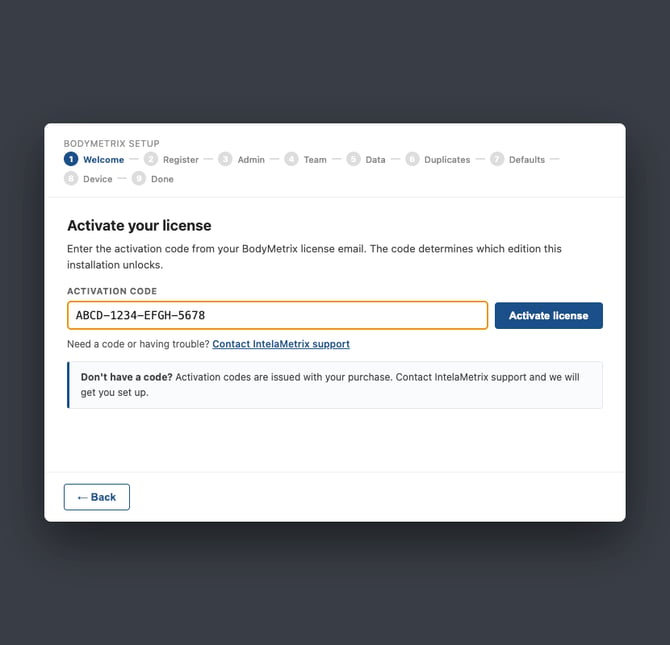
3. Accept the terms. Open each tab (Terms of Service, EULA & Warranty, Privacy Policy) and scroll to the bottom. Each checkbox unlocks once you've scrolled through its document. Check all three, then click Agree and Continue. If a checkbox stays greyed out, you haven't reached the bottom of that document yet.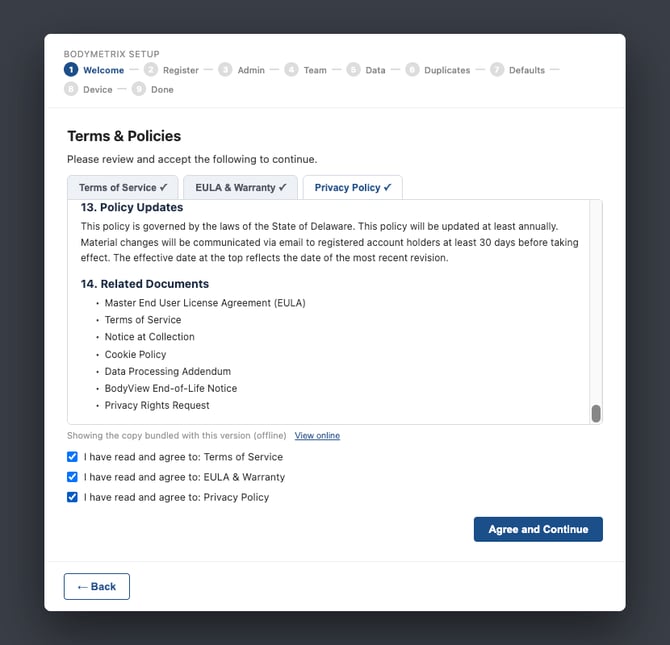
4. Register your installation. Enter your name, school or organization, and contact details. Under Industry, choose Youth Sports / Wrestling, then your role. Under Compliance Disclosure, check the data privacy laws that apply to your program. For a U.S. school, that's usually FERPA. Click Continue.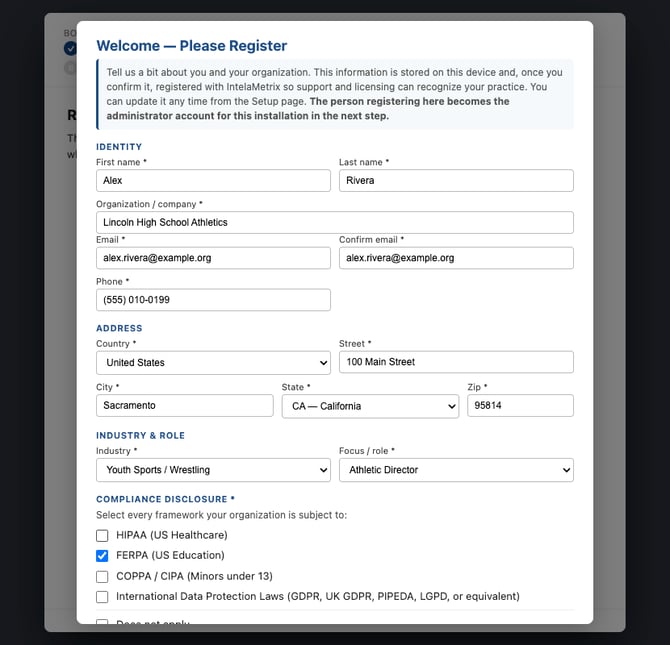
5. Create your admin account. Choose who this account belongs to:
- "I am a Track Wrestling assessor, Team Coach, Athletic Director..." if you run weigh-ins or hold your program's Track Wrestling account. Your submissions will be attributed to you by name.
- "I am an IT administrator or a non-assessor" if you're setting up the computer for someone else. This account stays settings-only, and each assessor creates their own user when they first sign in to Track Wrestling.
Then set a 6-digit PIN, choose two security questions, and click Create Admin Account. You can unlink a Track Wrestling account later in Setup > User Management.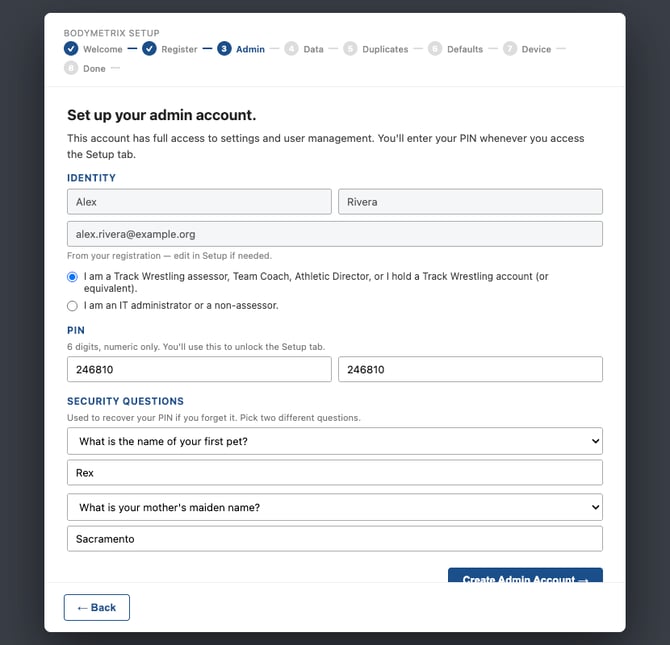
6. Save your recovery code. Write down the one-time recovery code or click Download as Text File. It's the only way back in if you forget both your PIN and your security answers, and it can't be shown again.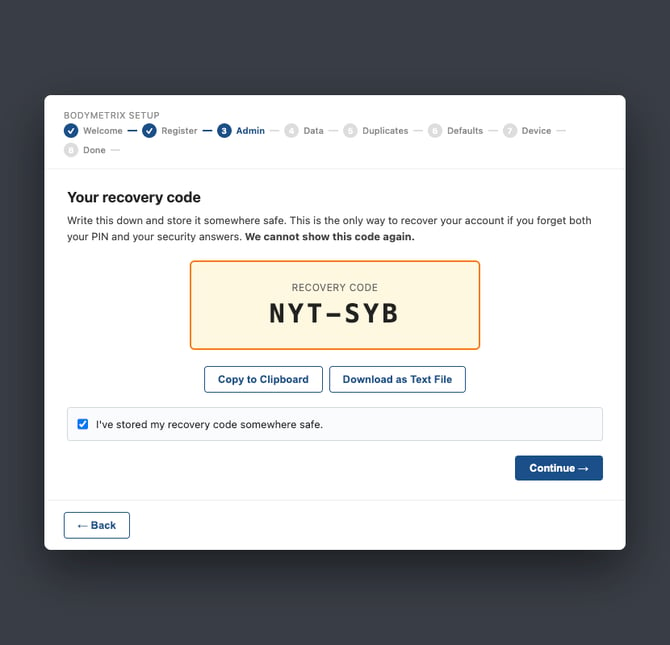
7. Choose your data source. Most programs should choose Start fresh, because your wrestlers import from Track Wrestling later. Two other options exist:
- Migrate from legacy BodyView: see Migrating from BodyView (EOL).
- Restore from a BodyMetrix backup: use this if you're replacing a computer or adding a second station. Select your .bmx backup file and click Restore. Enter the backup password if one was set.
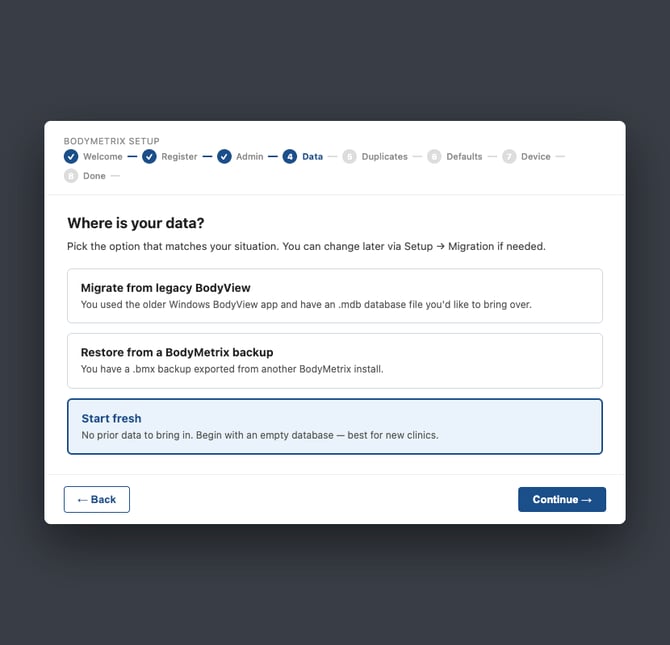
This choice isn't final. You can import data later from Setup > Data Management.
Migrate from legacy BodyView: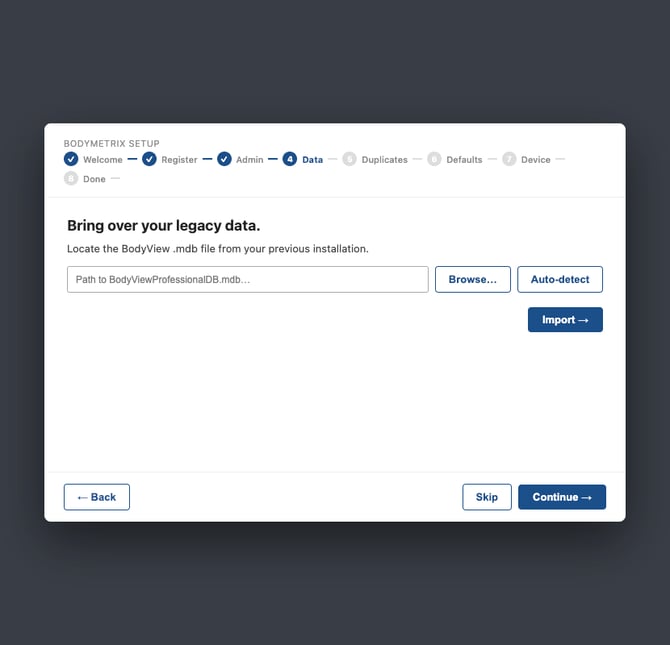
Restore from a BodyMetrix backup: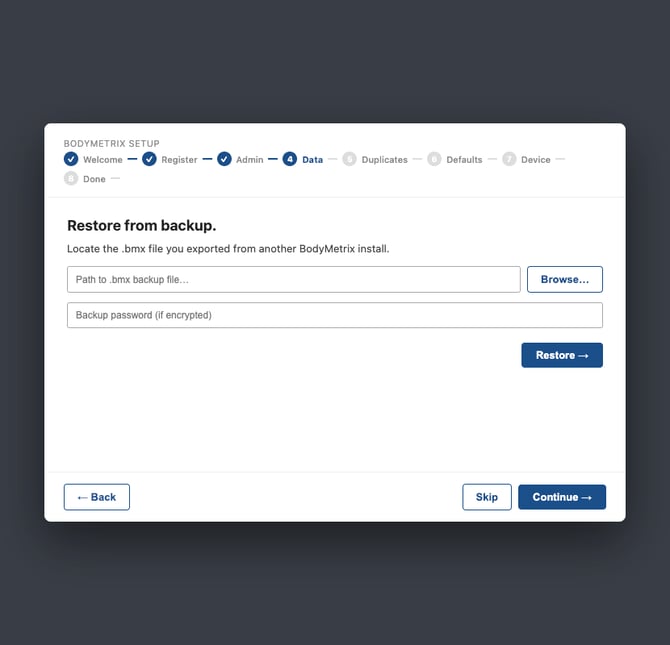
8. Set your defaults. Choose Imperial (lbs, inches) for U.S. programs. The body composition formula is set to High School Wrestling (NFHS) by your license.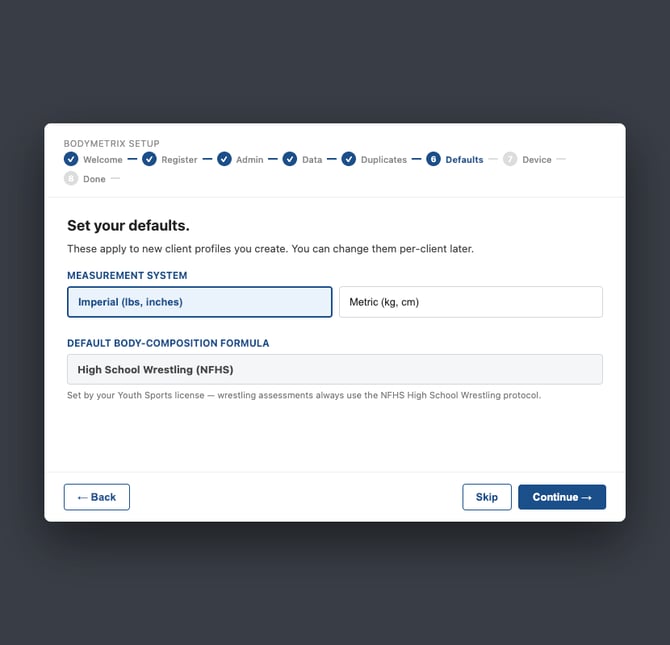
9. Connect the wand. Plug the BodyMetrix wand into a USB port and click Detect Device. If the wand isn't with you, click Skip, and the app will remind you at next launch.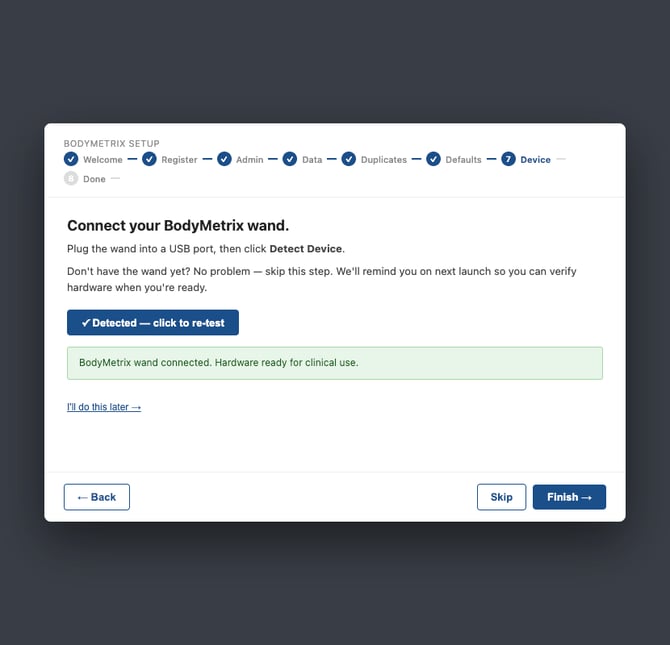
10. You're set up. Review the recap and click Open BodyMetrix. To add coaches or staff later, go to Setup > User Management.