
The first time BodyMetrix Software opens, a Setup Wizard walks you through everything you need before your first scan. It takes about 15 minutes.
Before you start
- BodyMetrix Software is installed. See Download BodyMetrix Software.
- Your computer meets the requirements: Windows 10 (22H2 or later) or macOS 12 or later. See BodyMetrix Software Computer Requirements.
- You have your activation code from your license email, in the format XXXX-XXXX-XXXX-XXXX. See Find and Enter Your Activation Code.
- The computer is online. Activation needs an internet connection.
- Your BodyMetrix Device is nearby. You’ll connect it at the end. If it hasn’t arrived yet, you can skip that step.
Step 1. Welcome: activate your license
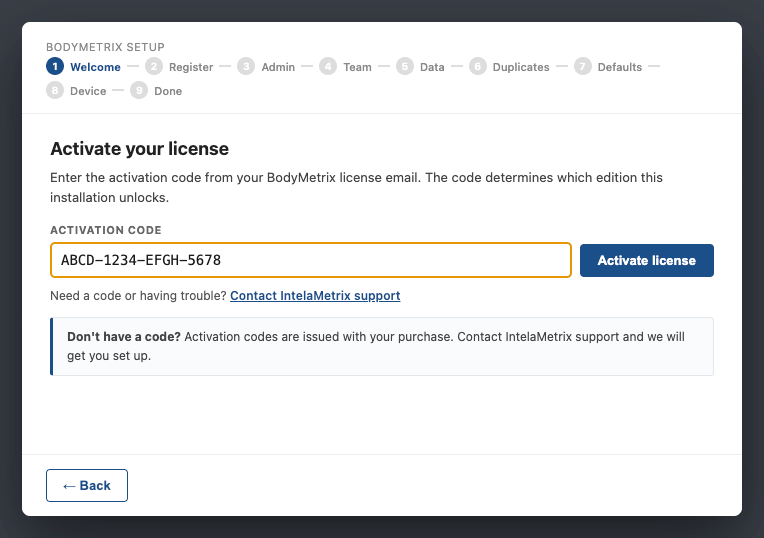
Click your preferred language, then type your activation code and click Activate license. You can type the code however you like, in lowercase, without dashes, or with extra spaces. The field formats it for you. Your code sets your edition and plan.
Step 2. Register your practice
Enter your business details:
- Country: pick it first. The address fields and default measurement units (imperial or metric) adapt to it. Your Country can’t be changed after registration, because it decides which regional rules apply. If it’s wrong, contact Support.
- Contact email: typed twice to confirm. BodyMetrix flags likely typos, such as “gmial.com,” with a one-click correction.
- Compliance Disclosure: check the box if your organization is subject to HIPAA, FERPA, COPPA/CIPA, or international data-protection laws. The disclaimer on the form explains which license agreement schedules this activates.
The person registering becomes the installation’s administrator in the next step.
Step 3. Admin: create your owner account and PIN
Create the owner account and your 6-digit PIN. The PIN protects admin areas and identifies who records each session. Then save your recovery code somewhere safe. You’ll need it if you ever forget your PIN.
Step 4. Team
Add staff now, or skip and add them later from Setup > User Management.
Step 5. Data: choose your data source
- Start fresh if you’re new to BodyMetrix.
- Import if you have an existing BodyMetrix database.
Coming from BodyView? See Migrate Your Data from BodyView to BodyMetrix Software.
Step 6. Duplicates
If you imported data, review and merge any duplicate clients. If you started fresh, this step is skipped.
Step 7. Defaults
Confirm your default measurement units and body composition formula. You can change them later in Setup > Preferences.
Step 8. Device: connect your BodyMetrix Device
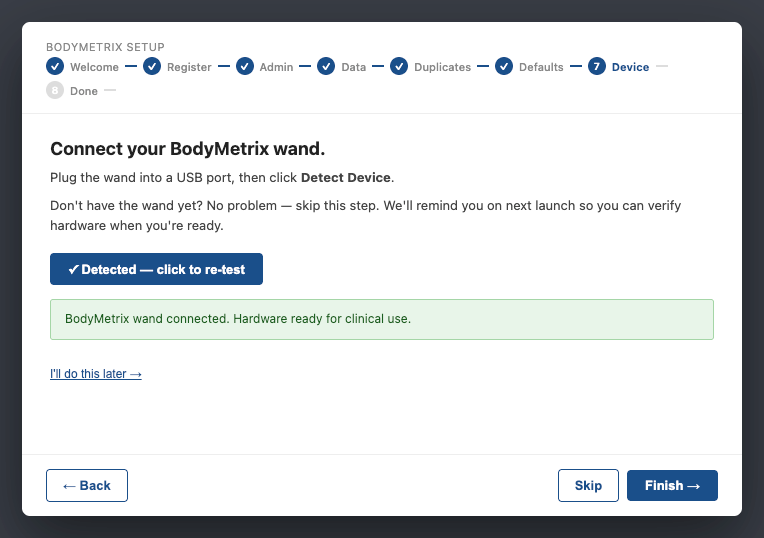
Plug the BodyMetrix wand into a USB port and click Detect Device. You’ll see a green confirmation. If your Device hasn’t arrived, click Skip. BodyMetrix reminds you at next launch, and you can connect it any time before your first scan.
Step 9. Done
Review the recap of what you configured, then click Open BodyMetrix →.
Made a typo? Every step after Register has a Back button. Fixing your name or email on the Register step also updates your admin account, since they’re the same identity.
Re-running the wizard
You can re-run the Setup Wizard any time from Setup > Licensing & EULA Agreement > Re-run Setup Wizard. It never deletes data.
The connection indicator
Next to the notification bell is a small signal icon showing whether online features will work right now:
| Icon | Meaning |
|---|---|
| Green, 3 bars | Connection is good. Activation, syncing, and updates work normally |
| Orange, 2 bars | Connected but slow. Online actions may take longer |
| Red, 1 bar with × | No connection |
With no connection, scans and client reports keep working, and anything that needs to sync waits safely until you’re back online. Only actions that talk to a server right now, such as activating a license, need a connection. The icon checks about once a minute and right after your computer wakes from sleep. Hover over it to see the current status.
What’s next
- Create your first client profile from the start screen.
- Take your first measurement from the Body Composition Scan tab.
Need help? Open a support case at bodymetrix.com/pages/contact-support-form and choose Software & App Support.
Screenshots: the three from ysc-onboarding-screenshots.zip work here, since those wizard screens are the same in both editions: step16-activate-license, step18-connect-wand, and step17-setup-recap.